How to record a song demo on your iPhone
Your iPhone is enough to record a solid songwriting demo. Here's how to capture the idea, layer parts, and keep every version organized with the song.
Available on the web, iOS and Android
Step 1 — Catch the idea first
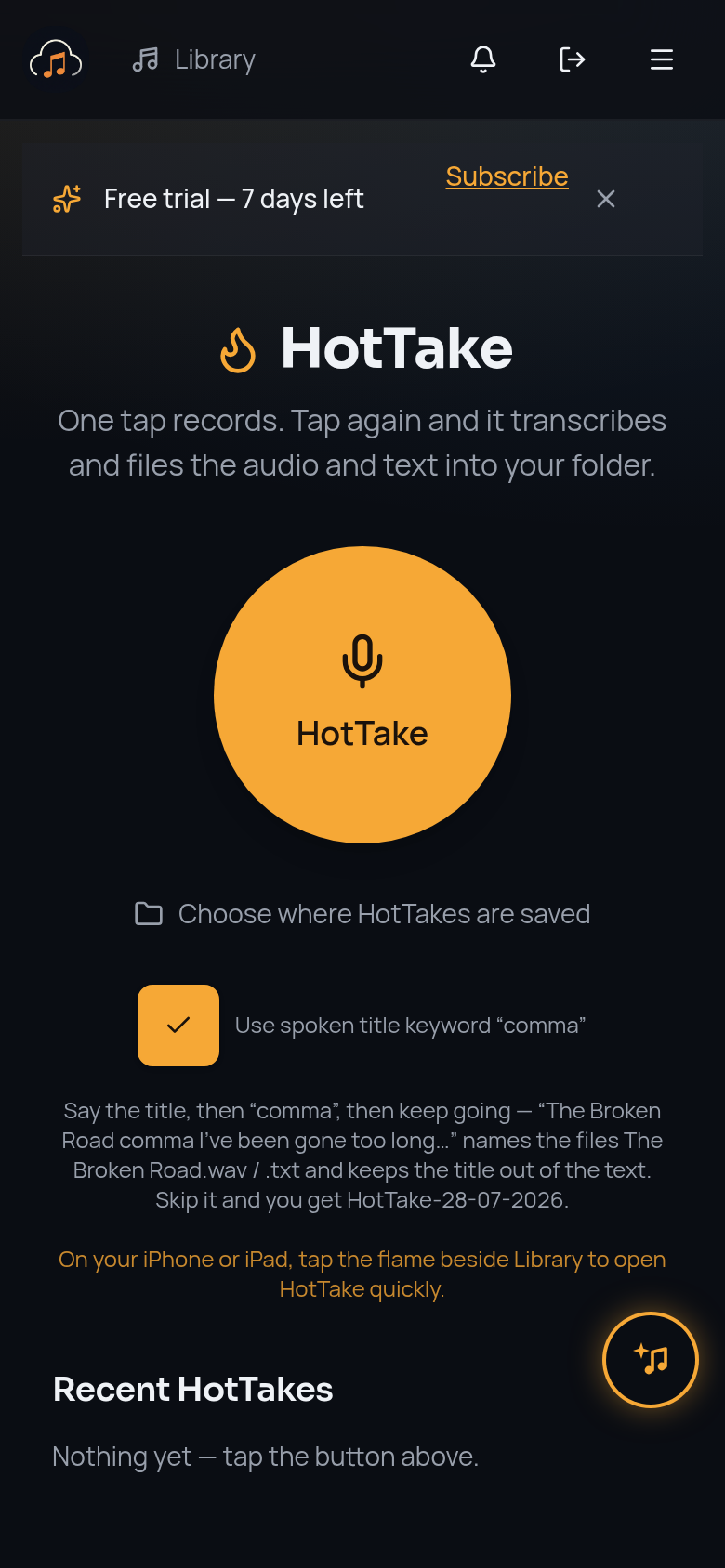
Open Hot Take on your iPhone and record. Don't worry about quality yet; the goal is to save the melody and words before they're gone.
Step 2 — Find a quiet spot and the right distance
Record in a soft-furnished room, hold or place the phone about a forearm's length away, and do a short test take to check levels.
Step 3 — Set a tempo and use a click
In Studio, set the song's tempo or detect it from what you played, then record with the click in your headphones so later parts line up.
Step 4 — Layer parts on separate tracks
Record guitar first, then vocals on another track. If one take is better, re-record just that track and keep the rest.
Step 5 — Plug in an interface if you have one
A USB audio interface or USB microphone improves sound noticeably. Connect it before recording and choose it as the input.
Step 6 — Save it as a version of the song
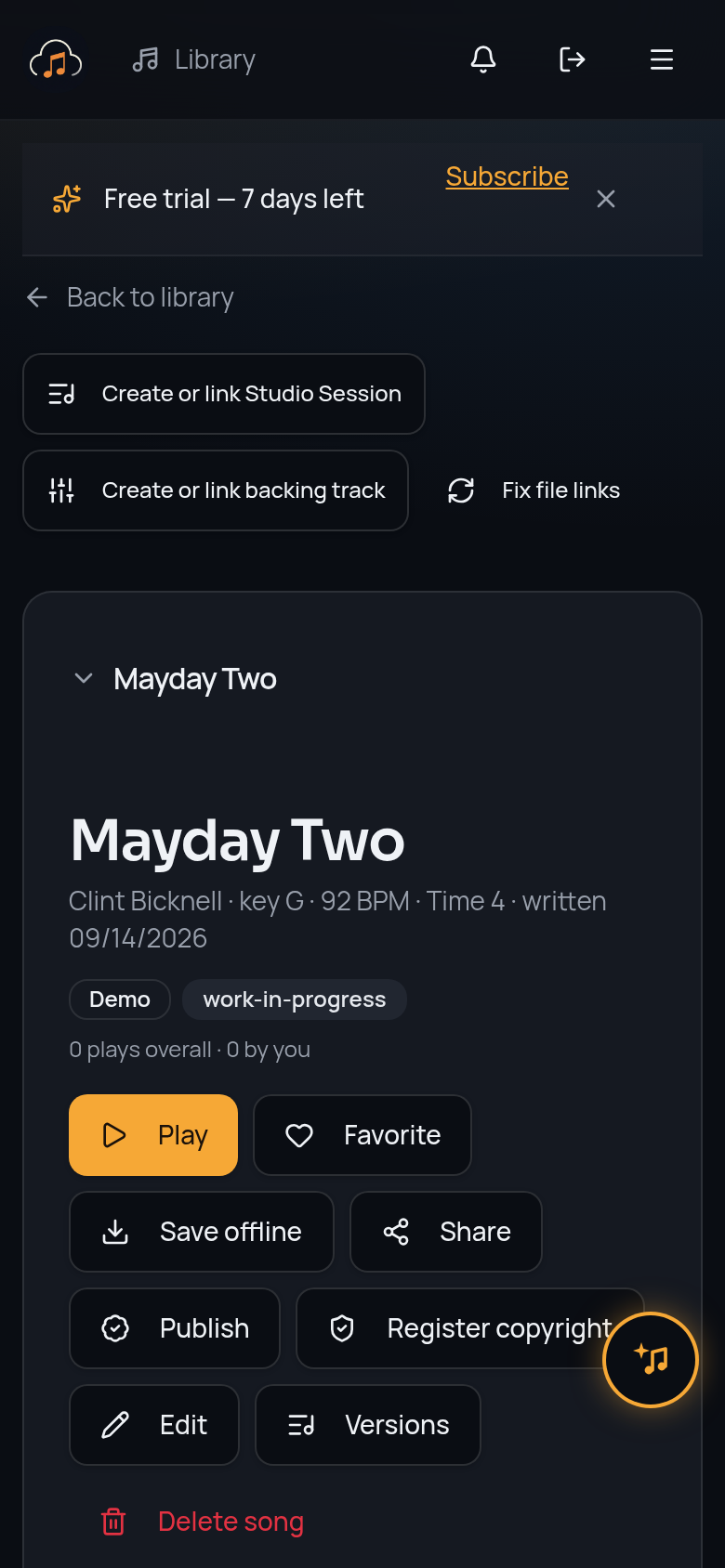
Save the demo to the song in your Library. Each new demo becomes another version, so you can compare your first take with the latest.
Common questions
- Can you record a good demo on just an iPhone?
- Yes. The built-in mic is fine for songwriting demos; headphones for the click and a quiet room matter more than gear.
- Do I need GarageBand?
- No. My Music ToolKit's Studio records multiple tracks on iPhone and keeps the demo attached to the song.
- Can I use a USB microphone or audio interface?
- Yes, most class-compliant USB interfaces and microphones work when connected to the iPhone.
- Where are my recordings saved?
- In the folder you picked on your own Google Drive, OneDrive or Dropbox.
Your next demo, from your pocket
Get the iPhone app and start a 7-day free trial — no card needed.